
I’ll admit it’s been a while since I posted anything. I may have got sucked into Dune awakening for a month or so… While it started out strong the end game PvP left a lot to be desired. But that’s not why I’m here today.
I’ve been slowly chipping away at getting the inventory & equipment systems in place. Probably two months ago at this point, I was working on fixing up my RPC system so that I can synchronize players equipment & weapons over the network.
With the messages in place, serialization of player items, spawning items from prefabs, client requesting inventory and the server processing the request, I can finally start working on adding in some actual UI elements of a player’s inventory and equipping items such as weapons. This is all for the goal of actually getting combat working with weapons and abilities but before I can do that, I need to make this whole inventory/equipment system!
As a caveat, this is a WAY to get draggable UIs in UMG, I’m not entirely sure it’s the most efficient way or even a good way. Additionally, I will need to profile whether hiding widgets or destroying them is better in the long run.
On to the UI
So with that out of the way, I know I will need four primary “windows” to start:
- Player Details – The player’s Health/Name/Icon
- Inventory – A container of the player’s items that we requested from the server.
- Equipment – A series of slots of the player equipment
- Action Bar – Where the players abilities will be held / buttons
I’m a big fan of giving users control over their UI. So I opted for a customizable UI where players can move around the windows and lock them into place. This is similar to how Warhammer Online works (btw I started playing Return of Reckoning again, it’s good PvP times).
It turns out making UMG widgets moveable is wayyy more complicated than I thought. So, I found some resources to help me understand them a bit better (spoiler they didn’t, only looking over the code a million times and testing out ideas did):
- This tutorial gave me a basic skeleton of getting it in place, but was lacking a lot of features that I wanted. They also created a GitHub repo.
- I then found Epic Games did a two part youtubes series (part 1 and part 2) on creating a Drag & Drop system much like I need. I haven’t built the item dragging part yet but I’ll probably reference this again when I do. Note it’s all blueprints. It’s also painfully long.
So while those helped, really just trail and error helped me understand what was happening the most. Hopefully, this post will help other folks who just want a quick “how the hell does this work?” guide and not just blindly follow a tutorial.
The components for making a draggable UI
I should note I took this design from an “ActionRPGInventory” plugin I bought (or got for free?) many years ago. But it was all blueprints so I decided to just take the design and reimplement everything else myself as I needed the ability to lock windows.

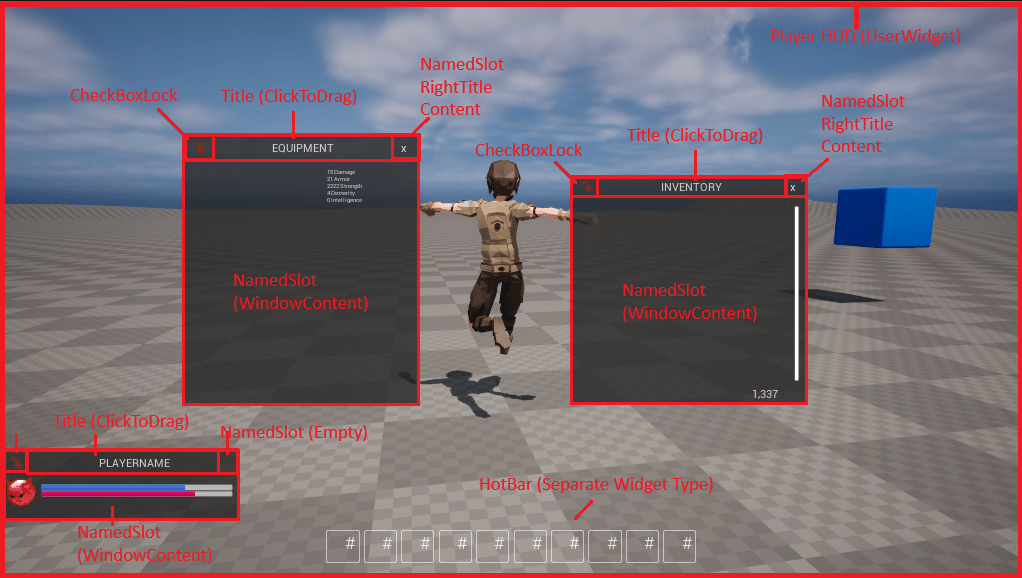
Our primary “HUD” is a simple UserWidget with a CanvasPanel and all of our primary window elements inside of it. Since all my windows are pretty much the same, let’s just see how Inventory is designed:

Note the “WBP_DraggableWindow”, this is what makes this particular widget draggable. Inside of the DraggableWindow which is actually our DraggableWidget class. This DraggableWidget exposes two NamedSlots which are important as they let us embed this widget but still give control to the parent widget to add the window content and in this case the ability to add a ‘close window’ button. Now, if I want to change the style of all my windows, I can simply do that from this WBP_DraggableWindow widget I created.
Here’s the DraggableWindow:

So there we have it, by embedding this WBP_DraggableWindow into any of our widgets, we gain the ability to drag it around in the UI, but can still customize the content and whether or not we want anything in the top right corner (like a close button).
I will admit my class design is a bit convoluted, and could probably be simplified a little bit if I made some of my windows just inherit from my DraggableWidget class.
How dragging actually works
Let’s start with our “HUD”. I put it in quotes because our HUD is actually just a UserWidget, and not the HUD class. I wanted to create the PlayerHUD so I can centralize all the logic for interacting with the UI here (when to show the cursor etc). Besides the initialization of finding our windows, this “HUD” really only overrides one method of interest, NativeOnDrop.
Since this HUD takes over the entire screen, this is what the player will be “dropping” other widgets onto.
bool UPlayerHUD::NativeOnDrop(const FGeometry& InGeometry, const FDragDropEvent& InDragDropEvent, UDragDropOperation* InOperation)
{
	Super::NativeOnDrop(InGeometry, InDragDropEvent, InOperation);

	UWidgetDrag* DragWidgetResult = Cast<UWidgetDrag>(InOperation);

	if (!IsValid(DragWidgetResult))
	{
		UE_LOG(LogTemp, Warning, TEXT("Cast returned null."));
		return false;
	}

	const FVector2D DragWindowOffset = InGeometry.AbsoluteToLocal(InDragDropEvent.GetScreenSpacePosition());
	const FVector2D DragWindowOffsetResult = DragWindowOffset - DragWidgetResult->DragOffset;

	DragWidgetResult->WidgetReference->AddToViewport();
	DragWidgetResult->WidgetReference->SetPositionInViewport(DragWindowOffsetResult, false);

	DragWidgetResult->WidgetReference->SetVisibility(ESlateVisibility::Visible);
	DragWidgetResult->WidgetOwner->SetVisibility(ESlateVisibility::Visible);

	UE_LOG(LogTemp, Warning, TEXT("MOUSEY NativeOnDrop DRAGGED %p"), DragWidgetResult->WidgetOwner);
	return true;
}
What exactly are they “dropping” you may ask? It’s a UDragDropOperation that we override called WidgetDrag.
class PMOCLIENT_API UWidgetDrag : public UDragDropOperation
{
	GENERATED_BODY()

public:
	UPROPERTY(EditAnywhere, BlueprintReadWrite)
	UUserWidget* WidgetReference;

	UPROPERTY(EditAnywhere, BlueprintReadWrite)
	UUserWidget* WidgetOwner;

	UPROPERTY(EditAnywhere, BlueprintReadWrite)
	FVector2D DragOffset;
};
WidgetDrag is a bag where we can stuff various references or data about the widget we started dragging around. As you are dragging, you’re not dragging the actual widget itself. You are free to add as you want to these classes/operations.
Going back to the NativeOnDrop, you’ll see we get the window offset, add the WidgetReference to the viewport (we removed the old one which you’ll see in a moment). And then critically, we set the visibility of both the WidgetReference (our DraggableWidget class) and WidgetOwner (our class that’s embedding the DraggableWidget, i.e. InventoryWindow or EquipmentWindow).
It took me about 6 hours of debugging to figure out why once I dragged and dropped a window that the close window button stopped working. It turns out, while I was setting the WidgetReference back to visible, I was NOT setting the embedding classes visibility, so it was set to hidden and the buttons were not working. If you aren’t embedding the widget you are dragging, just setting the WidgetReference visibility should be enough.
DraggableWidget
Ok so lets look at this DraggableWidget, what you’ll notice is that most of the overridden functions return FReply. If you want more information on how slate/UMG uses these, please see this guide which I literally just found now and wish I had found earlier.
/** User Widget Functions to handle Dragging **/
	virtual FReply NativeOnMouseButtonDown(const FGeometry& InGeometry, const FPointerEvent& InMouseEvent) override;
	virtual void NativeOnDragDetected(const FGeometry& InGeometry, const FPointerEvent& InMouseEvent, UDragDropOperation*& OutOperation) override;
	virtual void NativeOnDragLeave(const FDragDropEvent& InDragDropEvent, UDragDropOperation* InOperation) override;
	virtual FReply NativeOnPreviewMouseButtonDown(const FGeometry& InGeometry, const FPointerEvent& InMouseEvent) override;
	virtual void NativeOnInitialized() override;

	UFUNCTION(BlueprintCallable)
	virtual FEventReply RedirectMouseDownToWidget(const FGeometry& InGeometry, const FPointerEvent& InMouseEvent);

	FReply CustomDetectDrag(const FPointerEvent& InMouseEvent, UWidget* WidgetDetectingDrag, FKey DragKey);
Since I want to allow the user to lock windows, I also added in some additional handling, but let’s run down what happens when…
The user wants to drag a window
This is probably the most interesting case. Let’s assume the user pressed ‘P’ to bring up the Equipment window. They now want to drag the window, so they click and hold the Border widget which contains the TitleText and start moving the mouse to another position on the screen.
- NativeOnPreviewMouseButtonDown is called with where they clicked and the mouse event type (left/right mouse button etc)
- We call into RedirectMouseDownToWidget to get our FReply, so we create an FReply and pass it to NativeOnMouseButtonDown.
- NativeOnMouseButtonDown calls Super::NativeOnMouseButtonDown so base classes can see if they will handle the event.
- In my case, I check if the DraggableBorder (a BindWidget variable which must exist in the UMG Widget implementing this class) is being hovered, meaning the player’s cursor is where it needs to be to allow the widget to be dragged.
- Since it is, we don’t return the native FReply but continue on to calling CustomDetectDrag
- In CustomDetectDrag, the first thing we do is see if the user has “locked” the window by clicking the lock icon. If it is locked we just return “unhandled”.
- Otherwise, we call into UWidgetBlueprintLibrary::DetectDragIfPressed and let it create the proper FReply for requesting a drag operation. This then returns up the chain back to NativeOnPreviewMouseButtonDown which returns the FReply of the drag request.
- We then get called back into our NativeOnDragDetected override by UMG. Here we create a UDragDropOperation of our WidgetDrag class (bag which contains data we want to pass to the HUD on drop).
- We set the DraggableWidget to SetVisibility(ESlateVisibility::HitTestInvisible) so that when we start dragging it immediately disappears (otherwise the window will linger until NativeOnDragLeave is called and looks bad).
- We fill out this WidgetDrag with our reference (this DraggableWidget), the Owner (Inventory/Equipment window which embeds this DraggableWidget) and where the user clicked when they first started dragging. We need this offset so we can drop the window not from the top left of the window, but exactly from where they clicked when they started dragging.
- We write all of this to the OutOperation, and then IMMEDIATELY the NativeOnDragLeave is called by UMG.
- NativeOnDragLeave removes the “old” widget from the Parent, as we will be re-adding it to the PlayerHUD once we complete the “drop” operation.
We then come full circle and when we release the mouse button we call into the PlayerHUD “NativeOnDrop” and viola, our widget is re-added, visibility re-instated, and it’s placed where the user wanted it.
And that’s it! For me that is how I implemented draggable windows, hope this helps someone, or me in the future when I inevitably forget how I got this working.
 a place to jot